> ## Documentation Index
> Fetch the complete documentation index at: https://craft-support.mintlify.site/llms.txt
> Use this file to discover all available pages before exploring further.
# Export to PDF, Word, and Markdown
> Export individual documents to PDF, Word, Markdown, and other formats.
Export documents to PDF, Word, Markdown, and other formats. Export is available on macOS, iOS, Web, and Windows; the formats vary by platform.
## How to export a document
**Open the document** you want to export.
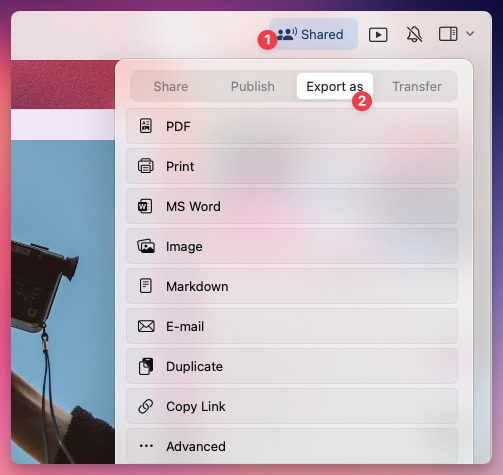
**Click on the Share button** in the top-right corner.
**Select Export As**.
**Choose the desired export format**.
 ## Available export formats
The available formats vary depending on which platform you're using:
* **PDF (.pdf)** – Ideal for sharing a formatted, print-ready version of your document.
* **Microsoft Word (.docx)** – Exports a Word-compatible file for further editing.
* **Image (.png/.jpeg)** – Converts the document into an image.
* **Markdown (.md)** – Retains structure and basic formatting for use in other apps.
* **TextBundle (.textbundle)** – Exports Markdown along with embedded images and attachments.
* **Email** – Sends the document directly via email.
* **PDF (.pdf)** – Ideal for sharing a formatted, print-ready version of your document.
* **Microsoft Word (.docx)** – Exports a Word-compatible file for further editing.
* **Image (.png/.jpeg)** – Converts the document into an image.
* **Markdown (.md)** – Retains structure and basic formatting for use in other apps.
* **TextBundle (.textbundle)** – Exports Markdown along with embedded images and attachments.
* **Email** – Sends the document directly via email.
* **PDF (.pdf)** – Print-friendly export format.
* **Image (.png/.jpeg)** – Exports the document as an image file.
* **Markdown (.md)** – A structured text format for cross-platform use.
* **TextBundle (.textbundle)** – Exports Markdown along with embedded images and attachments.
* **PDF (.pdf)** – Print-friendly export format.
* **Microsoft Word (.docx)** – Exports a Word-compatible file for further editing.
* **Image (.png/.jpeg)** – Exports the document as an image file.
* **Markdown (.md)** – A structured text format for cross-platform use.
* **TextBundle (.textbundle)** – Exports Markdown along with embedded images and attachments.
## PDF export options
When you export a document as PDF, Craft opens an export sheet with options for paper size, font size, and what to include in the output. The available toggles and defaults differ slightly between platforms.
| Option | Type | Default |
| - | - | - |
| Paper Size | Dropdown (A4, Letter, …) | A4 |
| Font Size | Dropdown (Regular, …) | Regular |
| Show Document Title | Toggle | Off |
| Show Page Numbers | Toggle | Off |
| Show Watermark | Toggle | Off |
| Show Tags | Toggle | On |
| Use Style | Toggle | On |
| Dark Mode | Toggle | Off |
Tap **Save As…** to finish the export.
| Option | Type | Default |
| - | - | - |
| Page Size | Dropdown (A4, Letter, …) | A4 |
| Font Size | Dropdown (Regular, …) | Regular |
| Show Document Title | Toggle | On |
| Show Page Numbers | Toggle | Off |
| Show Watermark | Toggle | On |
| Use Style | Toggle | On |
| Dark Mode | Toggle | Off |
Click **Export to PDF** to download the file.
The sidebar Table of Contents is a navigation view. It is not included in PDF exports, and there is no Table of Contents block to insert into a document. See [Table of Contents](/introduction/navigation#table-of-contents).
On Web and Windows, the **Show Watermark** toggle is on by default. Turn it off in the export sheet if you don't want the Craft watermark on the bottom of the PDF. On macOS and iOS the watermark is off by default.
To export or copy tables made in Craft to Excel:
1. Export the document or page from Craft to Word.
2. Copy the desired table in Word, paste it into Excel.
Copying a table from Excel to a Craft page should work without any workarounds.
## Exporting multiple documents at once
Bulk exporting multiple documents at once is only available on **Mac and iPad**. The available formats for bulk export are:
* **Markdown (.md)**
* **TextBundle (.textbundle)**
* **PDF (.pdf)**
### How to bulk export multiple documents
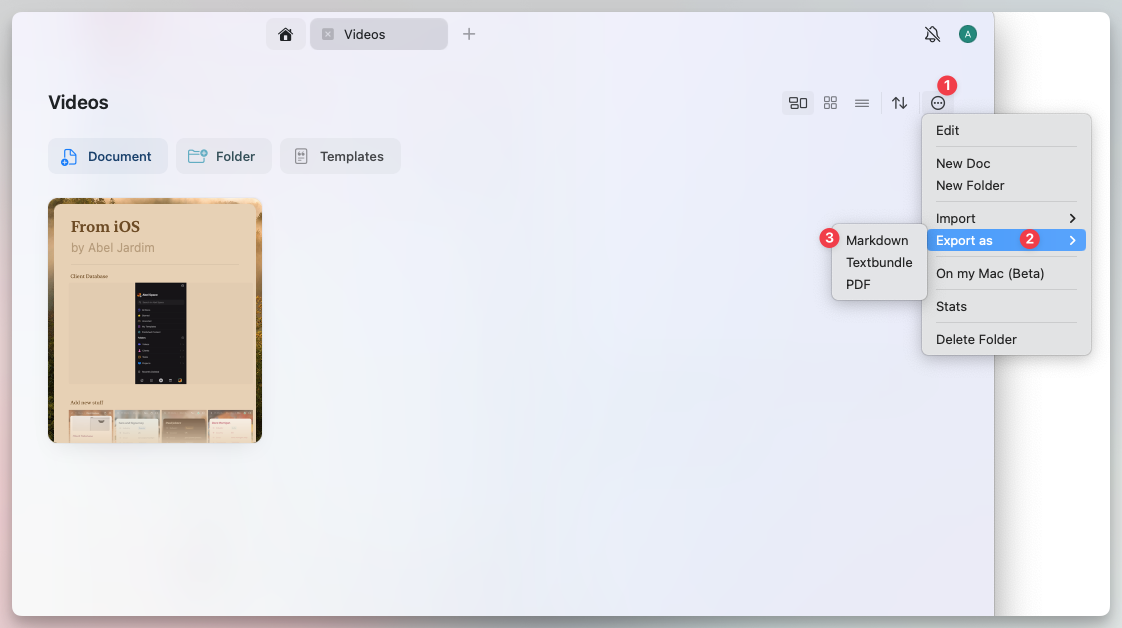
**Navigate to a folder** that contains the documents you want to export.
**Select multiple documents** by tapping and holding (iPad) or using **Shift + Click** (Mac).
**Tap the three-dot menu (⋯)** in the top-right corner.
**Select Export As**, then choose a format.
## Available export formats
The available formats vary depending on which platform you're using:
* **PDF (.pdf)** – Ideal for sharing a formatted, print-ready version of your document.
* **Microsoft Word (.docx)** – Exports a Word-compatible file for further editing.
* **Image (.png/.jpeg)** – Converts the document into an image.
* **Markdown (.md)** – Retains structure and basic formatting for use in other apps.
* **TextBundle (.textbundle)** – Exports Markdown along with embedded images and attachments.
* **Email** – Sends the document directly via email.
* **PDF (.pdf)** – Ideal for sharing a formatted, print-ready version of your document.
* **Microsoft Word (.docx)** – Exports a Word-compatible file for further editing.
* **Image (.png/.jpeg)** – Converts the document into an image.
* **Markdown (.md)** – Retains structure and basic formatting for use in other apps.
* **TextBundle (.textbundle)** – Exports Markdown along with embedded images and attachments.
* **Email** – Sends the document directly via email.
* **PDF (.pdf)** – Print-friendly export format.
* **Image (.png/.jpeg)** – Exports the document as an image file.
* **Markdown (.md)** – A structured text format for cross-platform use.
* **TextBundle (.textbundle)** – Exports Markdown along with embedded images and attachments.
* **PDF (.pdf)** – Print-friendly export format.
* **Microsoft Word (.docx)** – Exports a Word-compatible file for further editing.
* **Image (.png/.jpeg)** – Exports the document as an image file.
* **Markdown (.md)** – A structured text format for cross-platform use.
* **TextBundle (.textbundle)** – Exports Markdown along with embedded images and attachments.
## PDF export options
When you export a document as PDF, Craft opens an export sheet with options for paper size, font size, and what to include in the output. The available toggles and defaults differ slightly between platforms.
| Option | Type | Default |
| - | - | - |
| Paper Size | Dropdown (A4, Letter, …) | A4 |
| Font Size | Dropdown (Regular, …) | Regular |
| Show Document Title | Toggle | Off |
| Show Page Numbers | Toggle | Off |
| Show Watermark | Toggle | Off |
| Show Tags | Toggle | On |
| Use Style | Toggle | On |
| Dark Mode | Toggle | Off |
Tap **Save As…** to finish the export.
| Option | Type | Default |
| - | - | - |
| Page Size | Dropdown (A4, Letter, …) | A4 |
| Font Size | Dropdown (Regular, …) | Regular |
| Show Document Title | Toggle | On |
| Show Page Numbers | Toggle | Off |
| Show Watermark | Toggle | On |
| Use Style | Toggle | On |
| Dark Mode | Toggle | Off |
Click **Export to PDF** to download the file.
The sidebar Table of Contents is a navigation view. It is not included in PDF exports, and there is no Table of Contents block to insert into a document. See [Table of Contents](/introduction/navigation#table-of-contents).
On Web and Windows, the **Show Watermark** toggle is on by default. Turn it off in the export sheet if you don't want the Craft watermark on the bottom of the PDF. On macOS and iOS the watermark is off by default.
To export or copy tables made in Craft to Excel:
1. Export the document or page from Craft to Word.
2. Copy the desired table in Word, paste it into Excel.
Copying a table from Excel to a Craft page should work without any workarounds.
## Exporting multiple documents at once
Bulk exporting multiple documents at once is only available on **Mac and iPad**. The available formats for bulk export are:
* **Markdown (.md)**
* **TextBundle (.textbundle)**
* **PDF (.pdf)**
### How to bulk export multiple documents
**Navigate to a folder** that contains the documents you want to export.
**Select multiple documents** by tapping and holding (iPad) or using **Shift + Click** (Mac).
**Tap the three-dot menu (⋯)** in the top-right corner.
**Select Export As**, then choose a format.
 ## Export daily notes
On **Mac, iPhone, and iPad** you can export your daily notes as Markdown files. Export all of them at once, or pick a date range. You can start the export from two places:
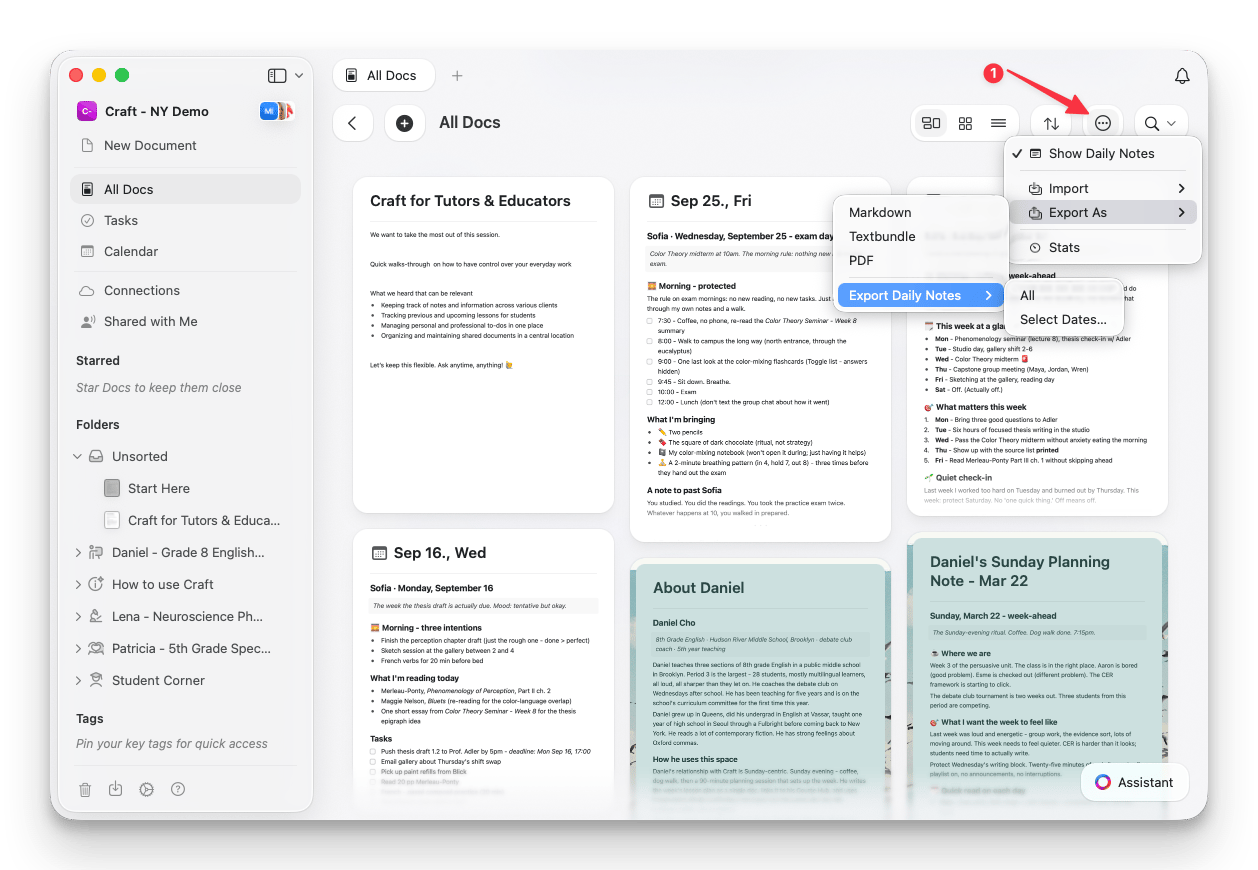
**Open All Docs** from the sidebar.
**Tap the three-dot menu (⋯)** in the top-right corner.
**Select Export As**, then **Export Daily Notes**.
**Choose All**, or **Select Dates…** to export a date range.
## Export daily notes
On **Mac, iPhone, and iPad** you can export your daily notes as Markdown files. Export all of them at once, or pick a date range. You can start the export from two places:
**Open All Docs** from the sidebar.
**Tap the three-dot menu (⋯)** in the top-right corner.
**Select Export As**, then **Export Daily Notes**.
**Choose All**, or **Select Dates…** to export a date range.
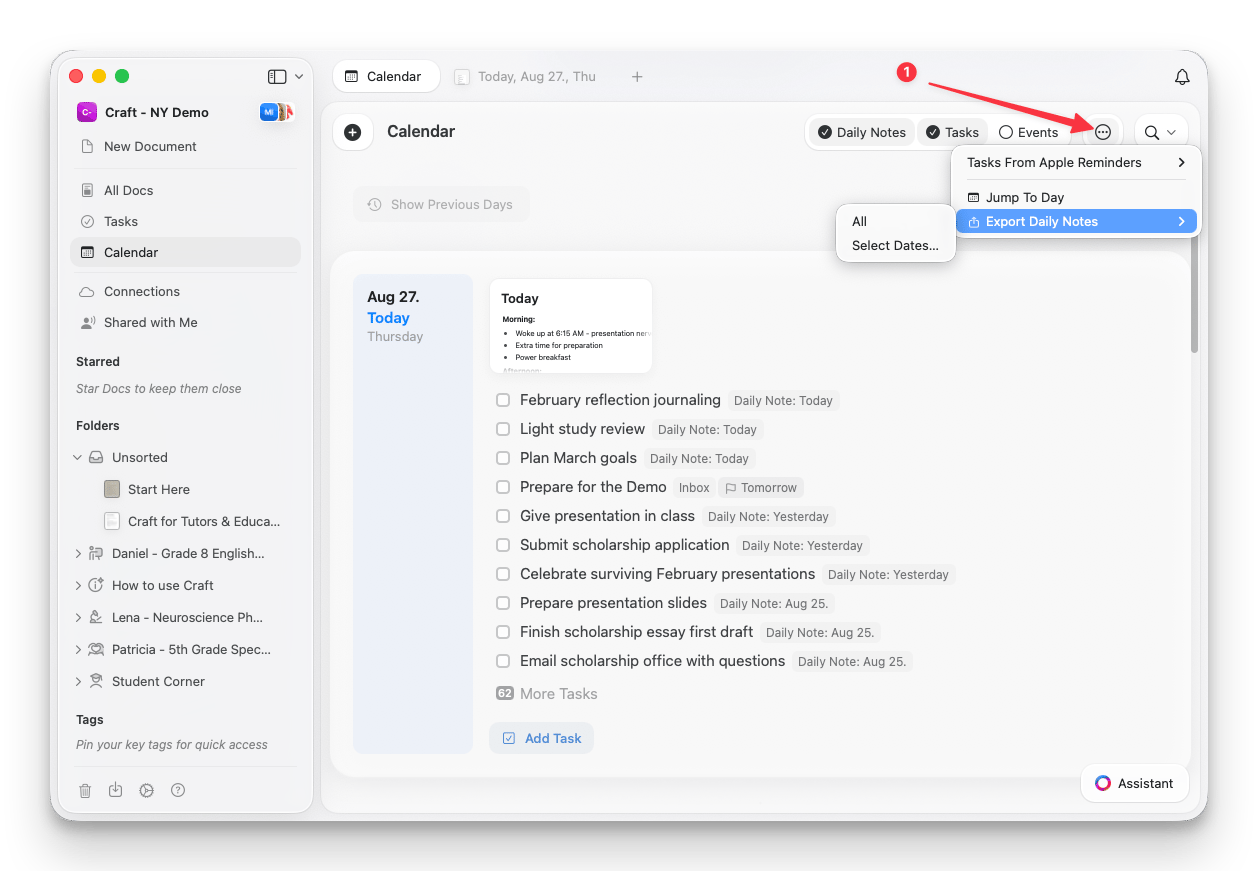
 **Open the Calendar view** from the sidebar.
**Tap the three-dot menu (⋯)** in the top-right corner.
**Select Export Daily Notes**.
**Choose All**, or **Select Dates…** to export a date range.
**Open the Calendar view** from the sidebar.
**Tap the three-dot menu (⋯)** in the top-right corner.
**Select Export Daily Notes**.
**Choose All**, or **Select Dates…** to export a date range.
 If you choose **Select Dates…**, set the start and end date, then select **Export**. The range starts at the first day of the current month by default.
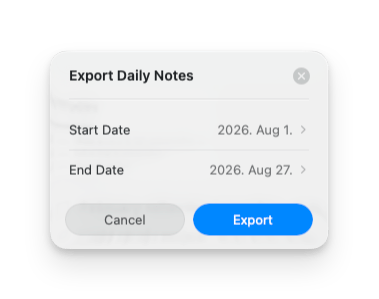 Only days that have a daily note are included in the export. Days without a note are skipped.
## Sharing vs. exporting
* If you want to **collaborate on a document**, consider using **Share Links** instead of exporting. This allows others to view or edit the document in Craft.
* You can also publish documents online via **Public Links** for easy sharing.
## Best practices for exporting
* Use **PDF or Word** for professional document sharing.
* Choose **Markdown or TextBundle** for cross-platform compatibility.
* **Batch export** multiple documents for backups or migrations (Mac & iPad only).
* **Check formatting** after exporting to ensure all elements appear correctly.
This documentation is built and hosted on [Mintlify](https://mintlify.com), a developer documentation platform.
Only days that have a daily note are included in the export. Days without a note are skipped.
## Sharing vs. exporting
* If you want to **collaborate on a document**, consider using **Share Links** instead of exporting. This allows others to view or edit the document in Craft.
* You can also publish documents online via **Public Links** for easy sharing.
## Best practices for exporting
* Use **PDF or Word** for professional document sharing.
* Choose **Markdown or TextBundle** for cross-platform compatibility.
* **Batch export** multiple documents for backups or migrations (Mac & iPad only).
* **Check formatting** after exporting to ensure all elements appear correctly.
This documentation is built and hosted on [Mintlify](https://mintlify.com), a developer documentation platform.