> ## Documentation Index
> Fetch the complete documentation index at: https://craft-support.mintlify.site/llms.txt
> Use this file to discover all available pages before exploring further.
# Apple Shortcuts
> Connect Craft to other apps, capture content, and automate document, folder, and task workflows with Apple Shortcuts.
Apple Shortcuts connects Craft to the information and actions you use in other apps. Build a meeting document from a Calendar event, send dictated text to today's Daily Note, or turn text from another app into a structured document with a title generated from its content.
Choose the inputs, the Craft destination, and the steps to run. Save the workflow as a shortcut and run it again whenever you need it.
Craft's Shortcuts actions require **iOS/iPadOS 17 or later** and **macOS 14 Sonoma or later**. On older versions (for example macOS Monterey or Ventura), Craft appears in the Shortcuts app but no actions are listed. The Siri Actions category requires OS 27.
## What is a shortcut?
A **shortcut** is a workflow made from one or more **actions**. An action performs one step, such as getting a Calendar event, dictating text, or creating a Craft document.
Actions can pass their results to later actions through **variables**. For example:
1. **Dictate Text** turns speech into text.
2. Craft's **Add to Document** uses that text as its Content and adds it to today's Daily Note.
3. **Show Notification** displays a confirmation after the Craft action finishes.
The dictation and notification actions belong to Apple. Add to Document belongs to Craft. You connect them in the Shortcuts editor.
## What can you build with Craft?
Shortcuts can collect information from other apps, format it, and send it to a chosen place in Craft. A workflow can also create or organize several items in one run.
| Workflow | How the actions work together |
| - | - |
| Voice inbox | Dictate text, then append it to a document or today's Daily Note. Add the current date or city if you want capture context. |
| Daily planning | Get today's Calendar events and due Reminders, assemble a planning page, and create a Craft document with that content. |
| Meeting preparation | Get an event's title and details, add agenda headings, and create a document in your meeting folder. |
| Turn text into a document | Receive text from another app or read a text file, use Apple's Use Model action to summarize or organize it, and send the result to a new or existing Craft document. |
| Project setup | Create a folder and several starter documents, passing the new folder to each document action. |
A Craft [template](/write-and-edit/templates) supplies reusable content and structure. A shortcut can fill that structure with information collected at the time it runs, such as the day's meetings or a file selected in Finder.
## Craft action groups
Search for **Craft** in Shortcuts to see the actions available on your device. Shortcuts groups them into these categories:
| Category | Actions |
| - | - |
| Documents | Create Document, Add to Document, Add Subpage to Document, Find Page, Open Document, Open Daily Note, Rename Document, Move Document, Delete Document, and Get first level blocks. |
| Folders | Create Folder, Open Folder, Rename Folder, Move Folder, and Delete Folder. |
| Navigation | Open Craft, Open And Search, and Open Quick Entry. |
| Tags | Open Tag. |
| Tasks | Create Task, Set Task Status, and Open Tasks List. |
| Reminders | Create Reminder, for a reminder that isn't attached to a document. |
| Siri Actions | Create Note, Find Note, Open Note, Update Note, Append Text to Note, Create Reminder, Open Reminder, Update Reminder, Delete Reminders, and Search Documents. These use Apple's names: a "note" is a Craft document and a "reminder" is a Craft task. |
For document workflows, start with the **Document** actions in the [action reference](/integrate/apple-shortcuts/actions). A document returned by one action can be passed to another, so you can create a document, add content to it, and rename that same document.
## Getting started
Open Apple's **Shortcuts** app, create a shortcut, and search for **Craft** to add an action. Select your Space, configure the action's inputs, and use variables to connect it to other steps.
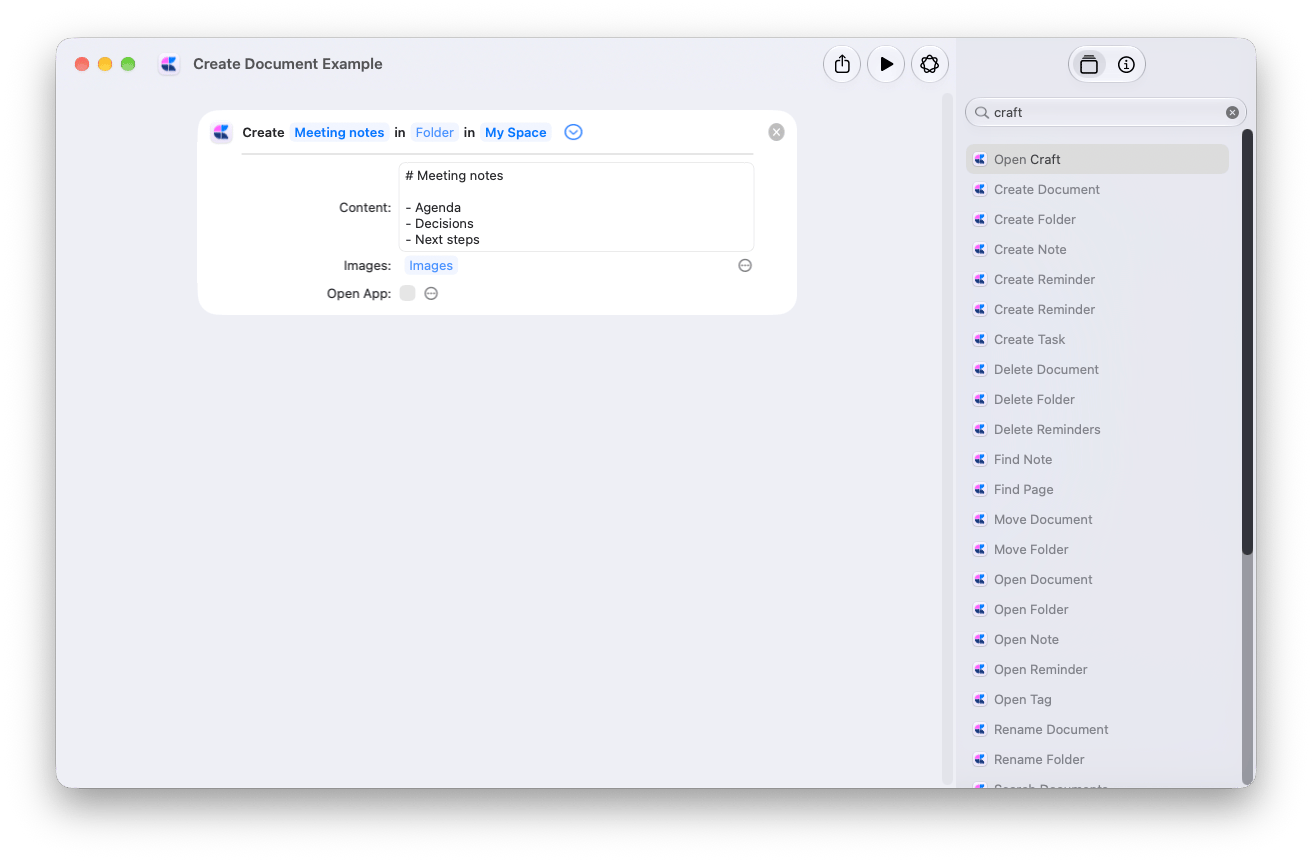 Start with the [Voice inbox example](/integrate/apple-shortcuts/examples#voice-inbox), or browse [Useful Shortcut Examples](/integrate/apple-shortcuts/examples). See the [action reference](/integrate/apple-shortcuts/actions) for parameter types, defaults, and return values.
## Running your shortcuts
Run a shortcut from the Shortcuts app, or ask Siri to run it by name. You can also configure entry points that suit the workflow:
* **iPhone and iPad:** add a shortcut to the Home Screen or enable **Show in Share Sheet** to receive supported content from another app.
* **iPhone:** assign a shortcut to [Back Tap](/integrate/apple-shortcuts/back-tap), or add a Shortcuts control to Control Center or the Lock Screen where supported.
* **Mac:** enable **Use as Quick Action** and **Finder** in the shortcut's details to run it on selected files. You can also assign a keyboard shortcut.
Some actions need permission to access the microphone, location, photos, files, or another app. A shortcut launched while the device is locked may require unlocking.
Craft actions aren't supported on Apple Watch. Run shortcuts that use Craft actions on your iPhone, iPad, or Mac.
### Built-in Siri phrases
Craft also provides phrases you can say to Siri without building your own shortcut. English examples include:
* “Open Quick Entry in Craft” or “Open Quick Capture in Craft”
* “Create a document in Craft” or “New document in Craft”
* “Create a task in Craft” or “New task in Craft”
* “Open today's note in Craft”
* “Open tasks in Craft” or “Open upcoming tasks in Craft”
* “Open Craft” or “Open Calendar in Craft”
Siri may ask for parameters such as the Space or document title. These phrases are separate from the OS 27 Siri Actions listed in the action reference.
### Run in the background
Most Craft actions that create or change content have an **Open App** option. With Open App off, the action runs in the background: Craft stays out of the way and the shortcut moves on to its next step. Turn it on when you want to see the result in Craft right away.
## Existing shortcuts and legacy actions
Craft 3.7 rebuilds the Craft actions, so some existing shortcuts may stop working after the update. Everything you could do before is still possible, along with many new actions and options, but you may need to replace an action and reconnect its inputs.
We're sorry for the extra setup this may require.
Some new actions have the same name as the action they replace. If a shortcut shows an error, replace the action even if its name looks unchanged.
| Earlier action | Action to use |
| - | - |
| Create Craft Doc | **Create Document**. Set Space, Folder, Title, and Content. |
| Add to Doc or Add to Craft Doc | **Add to Document**. Set Space and Document, reconnect Content, and choose Append or Prepend. |
| Open Space | **Open Craft** with the Space selected. Set Location if you want a particular view. |
| Open Craft | **Open Craft**. Add the new action and select the Space and Location again. |
| Open Document | **Open Document**. Add the new action and select the Space and Document again. |
| Open And Search | **Open And Search**. Add the new action, select the Space, and reconnect Query. |
| Open Today | **Open Daily Note** with Day set to Today. |
| Open task creation | **Open Quick Entry** with Mode set to New Task to enter the task yourself, or **Create Task** to create it directly. The earlier action is hidden from the action list but remains available to existing shortcuts. |
| Create Task | **Create Task**. Reconnect Title, then set Schedule, Deadline, and Reminder using the new Today, Tomorrow, and Custom options. |
| Get first level blocks from a document | **Get first level blocks**. Set Space and Document, and reconnect Number. |
| Create a global reminder in the Craft app | **Create Reminder** from the **Reminders** category. Set User, Due Date, and Text. |
To repair a shortcut, add the replacement action before removing the old one. Copy its settings, reconnect variables from earlier steps, and reconnect any later actions that used its result. Remove the legacy action, then run the shortcut on a test document. Check both the destination and the saved content.
## Apple Intelligence and Siri AI
On a supported device, Apple's **Use Model** action can process text and return a result for a Craft action. For example, organize pasted text into a note, or generate a title from imported text and pass it to Rename Document. This is separate from invoking Craft Assistant.
Apple's **Describe a Shortcut** can't add Craft actions yet. Add Craft actions manually in the Shortcuts editor.
Apple Intelligence availability depends on your device, language, and region. See [Apple's Shortcuts guidance](https://support.apple.com/guide/shortcuts/use-apple-intelligence-in-shortcuts-tpg3vrvwmclv/ios). For asking Siri to work directly with Craft documents and tasks, see [Siri AI](/integrate/siri).
Parameters, defaults, and return values for Craft actions in Apple Shortcuts.
Build a voice inbox, process text with Apple Intelligence, or import a text file with a generated title.
This documentation is built and hosted on [Mintlify](https://mintlify.com), a developer documentation platform.
Start with the [Voice inbox example](/integrate/apple-shortcuts/examples#voice-inbox), or browse [Useful Shortcut Examples](/integrate/apple-shortcuts/examples). See the [action reference](/integrate/apple-shortcuts/actions) for parameter types, defaults, and return values.
## Running your shortcuts
Run a shortcut from the Shortcuts app, or ask Siri to run it by name. You can also configure entry points that suit the workflow:
* **iPhone and iPad:** add a shortcut to the Home Screen or enable **Show in Share Sheet** to receive supported content from another app.
* **iPhone:** assign a shortcut to [Back Tap](/integrate/apple-shortcuts/back-tap), or add a Shortcuts control to Control Center or the Lock Screen where supported.
* **Mac:** enable **Use as Quick Action** and **Finder** in the shortcut's details to run it on selected files. You can also assign a keyboard shortcut.
Some actions need permission to access the microphone, location, photos, files, or another app. A shortcut launched while the device is locked may require unlocking.
Craft actions aren't supported on Apple Watch. Run shortcuts that use Craft actions on your iPhone, iPad, or Mac.
### Built-in Siri phrases
Craft also provides phrases you can say to Siri without building your own shortcut. English examples include:
* “Open Quick Entry in Craft” or “Open Quick Capture in Craft”
* “Create a document in Craft” or “New document in Craft”
* “Create a task in Craft” or “New task in Craft”
* “Open today's note in Craft”
* “Open tasks in Craft” or “Open upcoming tasks in Craft”
* “Open Craft” or “Open Calendar in Craft”
Siri may ask for parameters such as the Space or document title. These phrases are separate from the OS 27 Siri Actions listed in the action reference.
### Run in the background
Most Craft actions that create or change content have an **Open App** option. With Open App off, the action runs in the background: Craft stays out of the way and the shortcut moves on to its next step. Turn it on when you want to see the result in Craft right away.
## Existing shortcuts and legacy actions
Craft 3.7 rebuilds the Craft actions, so some existing shortcuts may stop working after the update. Everything you could do before is still possible, along with many new actions and options, but you may need to replace an action and reconnect its inputs.
We're sorry for the extra setup this may require.
Some new actions have the same name as the action they replace. If a shortcut shows an error, replace the action even if its name looks unchanged.
| Earlier action | Action to use |
| - | - |
| Create Craft Doc | **Create Document**. Set Space, Folder, Title, and Content. |
| Add to Doc or Add to Craft Doc | **Add to Document**. Set Space and Document, reconnect Content, and choose Append or Prepend. |
| Open Space | **Open Craft** with the Space selected. Set Location if you want a particular view. |
| Open Craft | **Open Craft**. Add the new action and select the Space and Location again. |
| Open Document | **Open Document**. Add the new action and select the Space and Document again. |
| Open And Search | **Open And Search**. Add the new action, select the Space, and reconnect Query. |
| Open Today | **Open Daily Note** with Day set to Today. |
| Open task creation | **Open Quick Entry** with Mode set to New Task to enter the task yourself, or **Create Task** to create it directly. The earlier action is hidden from the action list but remains available to existing shortcuts. |
| Create Task | **Create Task**. Reconnect Title, then set Schedule, Deadline, and Reminder using the new Today, Tomorrow, and Custom options. |
| Get first level blocks from a document | **Get first level blocks**. Set Space and Document, and reconnect Number. |
| Create a global reminder in the Craft app | **Create Reminder** from the **Reminders** category. Set User, Due Date, and Text. |
To repair a shortcut, add the replacement action before removing the old one. Copy its settings, reconnect variables from earlier steps, and reconnect any later actions that used its result. Remove the legacy action, then run the shortcut on a test document. Check both the destination and the saved content.
## Apple Intelligence and Siri AI
On a supported device, Apple's **Use Model** action can process text and return a result for a Craft action. For example, organize pasted text into a note, or generate a title from imported text and pass it to Rename Document. This is separate from invoking Craft Assistant.
Apple's **Describe a Shortcut** can't add Craft actions yet. Add Craft actions manually in the Shortcuts editor.
Apple Intelligence availability depends on your device, language, and region. See [Apple's Shortcuts guidance](https://support.apple.com/guide/shortcuts/use-apple-intelligence-in-shortcuts-tpg3vrvwmclv/ios). For asking Siri to work directly with Craft documents and tasks, see [Siri AI](/integrate/siri).
Parameters, defaults, and return values for Craft actions in Apple Shortcuts.
Build a voice inbox, process text with Apple Intelligence, or import a text file with a generated title.
This documentation is built and hosted on [Mintlify](https://mintlify.com), a developer documentation platform.