> ## Documentation Index
> Fetch the complete documentation index at: https://craft-support.mintlify.site/llms.txt
> Use this file to discover all available pages before exploring further.
# Search and Quick Open
> Find documents and content in Craft with Quick Open, Search, and Find in Page, and learn which one to use.
Craft has three ways to find things:
* **Quick Open** opens a document, folder, space, or view by name. It looks across all your spaces.
* **Search** finds content inside the documents of the space you're in.
* **Find in Page** finds and replaces text inside the open document. [Learn more](/organize-and-find/search/in-document).
This article covers **Search** and **Quick Open**.
## Which Search Should I Use?
| | Quick Open | Search | Find in Page |
| - | - | - | - |
| **Use it to** | Open a document, folder, space, or view by name | Find every document that mentions a word or phrase | Find or replace text in the document you're reading |
| **Looks in** | All your spaces | The current space | The open document |
| **Shows** | Documents, folders, spaces, views, and daily notes. On macOS and iOS, also pages and blocks from the current space | One result per document, with a count of matching blocks | Every match in the document |
### How to Open Each One
* **Quick Open**: Press **Cmd + O**.
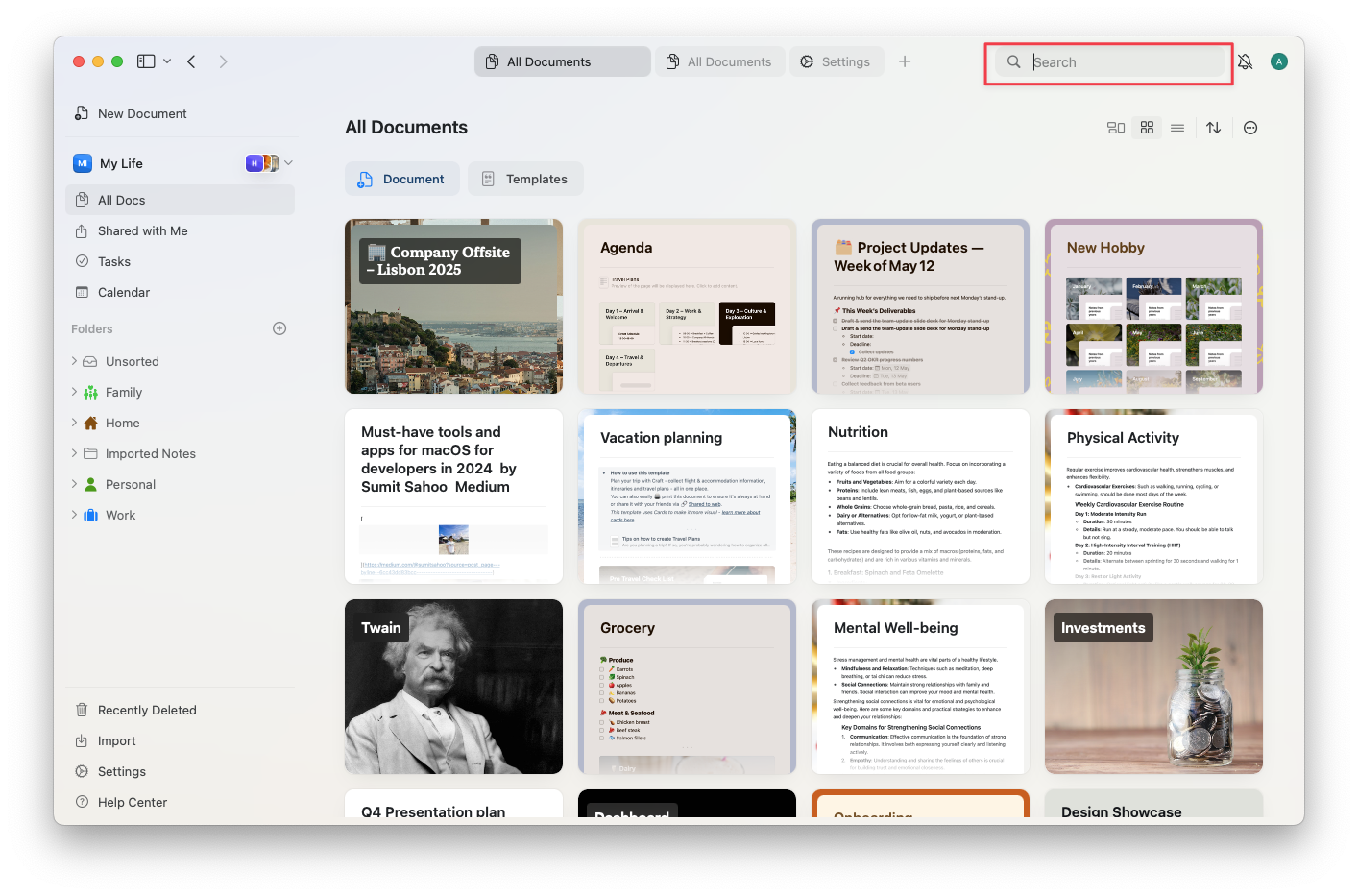
* **Search**: Press **Cmd + F** while no document is open, or click the search field at the top of the window.
* **Find in Page**: Press **Cmd + F** inside a document.
* **Quick Open**: Press **Cmd + O**, or tap with two fingers inside a document.
* **Search**: Press **Cmd + F** while no document is open, or tap the search field at the top of the screen.
* **Find in Page**: Press **Cmd + F** inside a document, or open the **•••** menu and choose **Find In Page**.
* **Quick Open**: Pull down from the top of the screen, or tap with two fingers inside a document.
* **Search**: Tap the search field at the top of the document list.
* **Find in Page**: Open the document's **•••** menu and choose **Find In Page**.
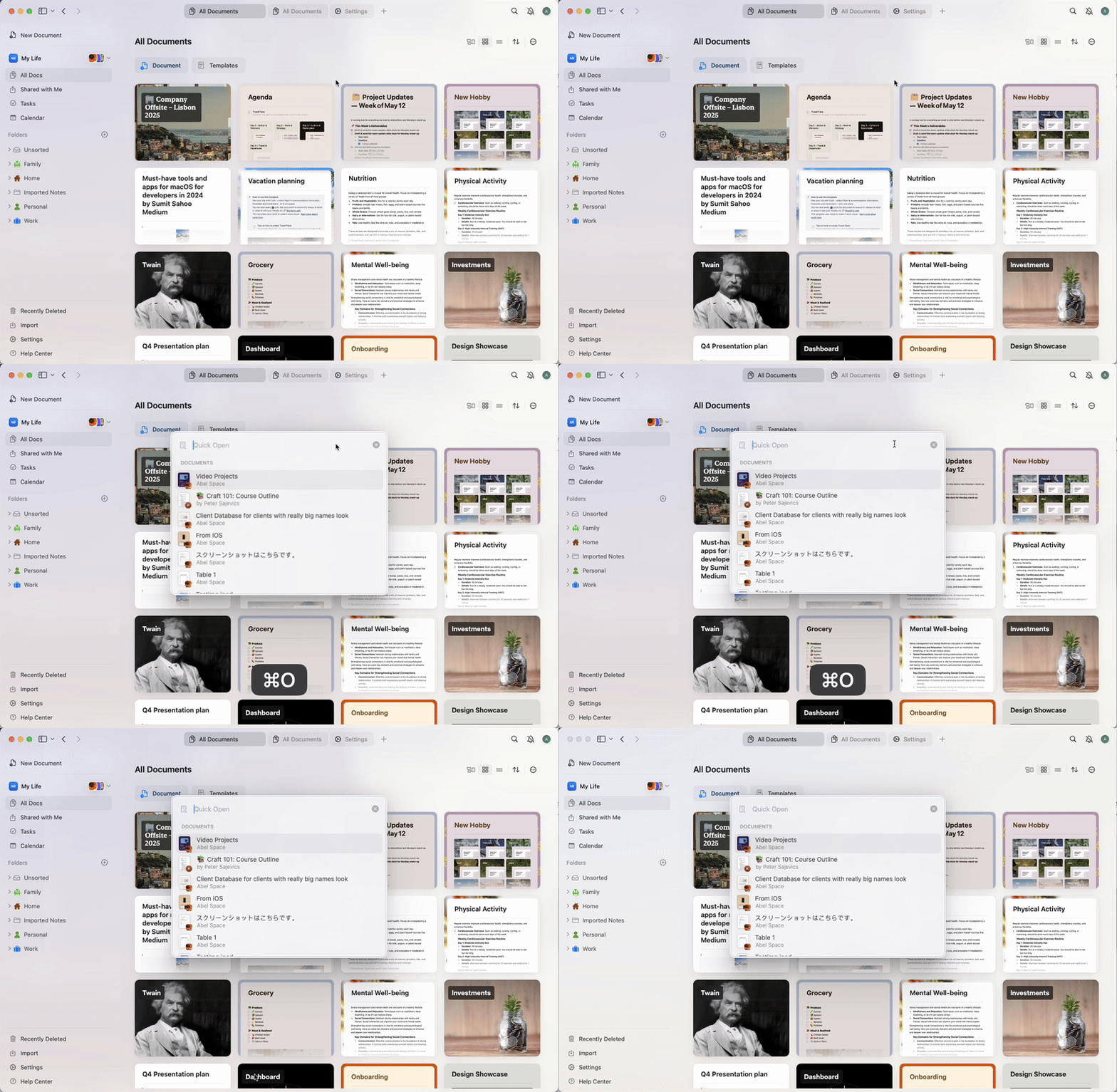 * **Quick Open**: Press **Ctrl + O**, or click the search field at the top of the window.
* **Search**: Open Quick Open, type your search, and click **See more results**.
* **Find in Page**: Press **Ctrl + F** inside a document.
* **Quick Open**: Press **Cmd + O** on a Mac (**Cmd + Shift + O** in Safari) or **Ctrl + O** on Windows, or click the search field at the top of the window.
* **Search**: Open Quick Open, type your search, and click **See more results**.
* **Find in Page**: Press **Cmd + F** on a Mac or **Ctrl + F** on Windows inside a document.
Inside a document, **Cmd + F** (**Ctrl + F** on Windows) opens Find in Page and only searches that document. To search the whole space, go back to a document list such as All Docs or a folder first. There, **Cmd + F** opens Search on macOS and iPad, and **Ctrl + F** opens Quick Open on Windows and Web.
### Searching Other Spaces
On Web and Windows, results can be limited to the current folder or view. Open All Docs to search across the current space.
Search only looks in the space you're in. To search another space, switch to that space first. Quick Open lists documents and folders from all your spaces, so you can also use it to open a document in another space by name.
## Search Bar
When you're browsing documents (All Docs, Starred, a folder, and so on), the search field is at the top of the window.
* **Quick Open**: Press **Ctrl + O**, or click the search field at the top of the window.
* **Search**: Open Quick Open, type your search, and click **See more results**.
* **Find in Page**: Press **Ctrl + F** inside a document.
* **Quick Open**: Press **Cmd + O** on a Mac (**Cmd + Shift + O** in Safari) or **Ctrl + O** on Windows, or click the search field at the top of the window.
* **Search**: Open Quick Open, type your search, and click **See more results**.
* **Find in Page**: Press **Cmd + F** on a Mac or **Ctrl + F** on Windows inside a document.
Inside a document, **Cmd + F** (**Ctrl + F** on Windows) opens Find in Page and only searches that document. To search the whole space, go back to a document list such as All Docs or a folder first. There, **Cmd + F** opens Search on macOS and iPad, and **Ctrl + F** opens Quick Open on Windows and Web.
### Searching Other Spaces
On Web and Windows, results can be limited to the current folder or view. Open All Docs to search across the current space.
Search only looks in the space you're in. To search another space, switch to that space first. Quick Open lists documents and folders from all your spaces, so you can also use it to open a document in another space by name.
## Search Bar
When you're browsing documents (All Docs, Starred, a folder, and so on), the search field is at the top of the window.
 ## Searching Logic
Search prioritizes title matches. On Web and Windows, it also matches text within words: `orsche` can match `Porsche`.
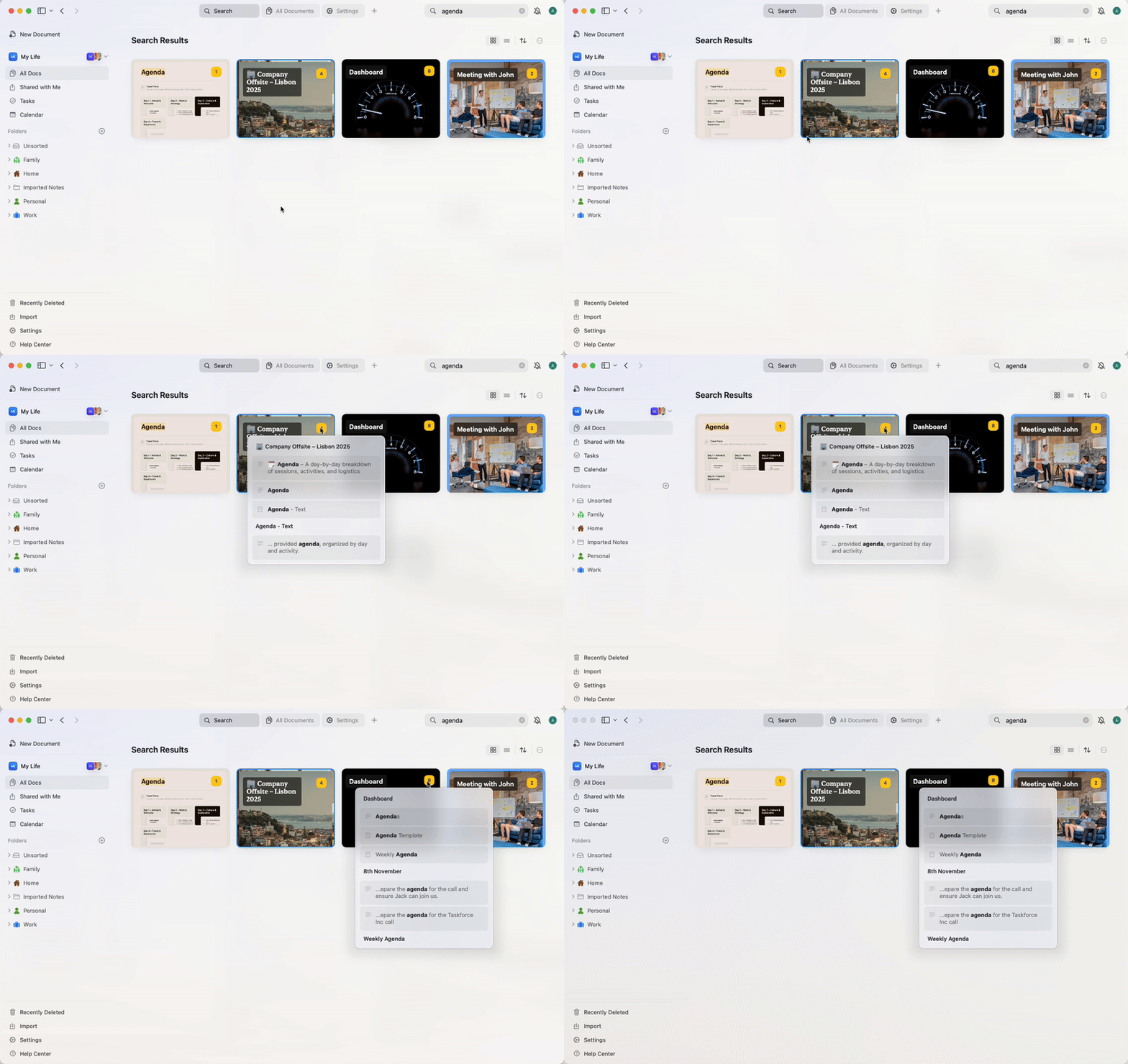
Search results show in a grid or list view, with a preview of the document or block. Clicking a result takes you directly to the relevant content, and matching words are highlighted.
The yellow number indicates how many instances of the results are matching your search inside that document. Hover over the number to get a preview of the results inside the document.
## Searching Logic
Search prioritizes title matches. On Web and Windows, it also matches text within words: `orsche` can match `Porsche`.
Search results show in a grid or list view, with a preview of the document or block. Clicking a result takes you directly to the relevant content, and matching words are highlighted.
The yellow number indicates how many instances of the results are matching your search inside that document. Hover over the number to get a preview of the results inside the document.
 ## Supported Content
Craft can search through:
* Text blocks (titles and body)
* Pages and subpages
* Tasks inside documents (title and description) – only on macOS and iPad
* Collection rows and columns
* Code blocks and table cells
* Rich link previews (title and description)
* File and image names
Search matches the names of images and files, not the text inside them. This includes text in photos, screenshots, and PDFs. To make that text searchable, extract it with Craft Assistant and add it to the document. See [Image and PDF Support](/ai-assistant/ocr-images-pdfs).
## Advanced Search Options
### Exact Phrase Matching
Use **quotes** to search for exact phrases. This is useful when you want to find specific multi-word terms.
**Examples:**
* `"meeting notes"` - finds documents containing exactly "meeting notes"
* `"project plan 2024"` - matches the exact phrase "project plan 2024"
* `"to do"` - finds "to do" but not "todo" or "to-do"
### Excluding Terms
Use a **hyphen** (minus sign) to exclude specific words from your search results.
**Examples:**
* `project -draft` – finds documents with "project" but excludes those containing "draft"
* `notes -archived` – shows notes that don't contain "archived"
* `meeting -canceled -postponed` – finds meetings that aren't canceled or postponed
### Regular Expressions
Use **regular expressions** for advanced pattern matching. Prefix your regex pattern with `regex:`.
**Examples:**
* `regex:(draft|final)` – finds documents containing either "draft" or "final"
* `regex:202[0-9]` – matches any year from 2020-2029
* `regex:task-[0-9]+` – finds task IDs like "task-123", "task-456"
### Combining Techniques
**Examples:**
* `"project plan" -draft regex:202[0-9]` – finds exact phrase "project plan" from 2020s, excluding drafts
* `meeting "Q1 2024" -canceled` – finds Q1 2024 meetings that weren't canceled
* `regex:(client|customer) -archived` – finds client/customer documents that aren't archived
Use quotes to keep a phrase together, for example `"meeting notes"`. The `-word` exclusion syntax and `regex:` prefix are not supported in space Search on Web and Windows; they are treated as literal text. To use regular expressions within a document, open [Find in Page](/organize-and-find/search/in-document) and select Regular Expression.
## Quick Open
**Quick Open** is a keyboard-first way to move around Craft. Use it to:
* Open any document or folder in any of your spaces by name
* Switch to another space
* Jump to views like Starred, Shared with Me, Tasks, and Calendar
* Open a daily note by typing **today**, **tomorrow**, **yesterday**, or a date
Quick Open is for getting to a document by name. To find every place a word appears in your space, use Search instead.
For shortcuts on each platform, see **How to Open Each One** above. You'll see a floating search bar that lets you begin typing immediately.
### How Quick Open Works
Start typing the name of a document, folder, space, or view.
Craft lists matching documents, folders, spaces, and views. On macOS and iOS, it also lists matching pages and blocks from the current space.
Use the arrow keys to scroll through the list.
Press **Enter** to open the selected item.
On Windows and Web, a **See more results** button appears at the bottom of the Quick Open panel when you search from the browse screen. Clicking it closes Quick Open and runs a full Search in the current space with what you typed.
## Limitations to be Aware Of
* Search covers the current space only. Use Quick Open to find documents in other spaces by name.
* Tasks in Inbox will not be found via search
* Text inside images, PDFs, and other attached files is not searchable, only their file names
* Shared docs that you haven't opened yet may not be fully indexed (only title and preview)
* Clicking a match in a code or table block will open the block, but **won't highlight the exact row**
## Related Articles
Navigate your workspace faster with keyboard-driven search
Find and replace text within a specific document
Use natural language to find and understand your content
Organize documents with tags for easier searching
Search within structured collection data
This documentation is built and hosted on [Mintlify](https://mintlify.com), a developer documentation platform.
## Supported Content
Craft can search through:
* Text blocks (titles and body)
* Pages and subpages
* Tasks inside documents (title and description) – only on macOS and iPad
* Collection rows and columns
* Code blocks and table cells
* Rich link previews (title and description)
* File and image names
Search matches the names of images and files, not the text inside them. This includes text in photos, screenshots, and PDFs. To make that text searchable, extract it with Craft Assistant and add it to the document. See [Image and PDF Support](/ai-assistant/ocr-images-pdfs).
## Advanced Search Options
### Exact Phrase Matching
Use **quotes** to search for exact phrases. This is useful when you want to find specific multi-word terms.
**Examples:**
* `"meeting notes"` - finds documents containing exactly "meeting notes"
* `"project plan 2024"` - matches the exact phrase "project plan 2024"
* `"to do"` - finds "to do" but not "todo" or "to-do"
### Excluding Terms
Use a **hyphen** (minus sign) to exclude specific words from your search results.
**Examples:**
* `project -draft` – finds documents with "project" but excludes those containing "draft"
* `notes -archived` – shows notes that don't contain "archived"
* `meeting -canceled -postponed` – finds meetings that aren't canceled or postponed
### Regular Expressions
Use **regular expressions** for advanced pattern matching. Prefix your regex pattern with `regex:`.
**Examples:**
* `regex:(draft|final)` – finds documents containing either "draft" or "final"
* `regex:202[0-9]` – matches any year from 2020-2029
* `regex:task-[0-9]+` – finds task IDs like "task-123", "task-456"
### Combining Techniques
**Examples:**
* `"project plan" -draft regex:202[0-9]` – finds exact phrase "project plan" from 2020s, excluding drafts
* `meeting "Q1 2024" -canceled` – finds Q1 2024 meetings that weren't canceled
* `regex:(client|customer) -archived` – finds client/customer documents that aren't archived
Use quotes to keep a phrase together, for example `"meeting notes"`. The `-word` exclusion syntax and `regex:` prefix are not supported in space Search on Web and Windows; they are treated as literal text. To use regular expressions within a document, open [Find in Page](/organize-and-find/search/in-document) and select Regular Expression.
## Quick Open
**Quick Open** is a keyboard-first way to move around Craft. Use it to:
* Open any document or folder in any of your spaces by name
* Switch to another space
* Jump to views like Starred, Shared with Me, Tasks, and Calendar
* Open a daily note by typing **today**, **tomorrow**, **yesterday**, or a date
Quick Open is for getting to a document by name. To find every place a word appears in your space, use Search instead.
For shortcuts on each platform, see **How to Open Each One** above. You'll see a floating search bar that lets you begin typing immediately.
### How Quick Open Works
Start typing the name of a document, folder, space, or view.
Craft lists matching documents, folders, spaces, and views. On macOS and iOS, it also lists matching pages and blocks from the current space.
Use the arrow keys to scroll through the list.
Press **Enter** to open the selected item.
On Windows and Web, a **See more results** button appears at the bottom of the Quick Open panel when you search from the browse screen. Clicking it closes Quick Open and runs a full Search in the current space with what you typed.
## Limitations to be Aware Of
* Search covers the current space only. Use Quick Open to find documents in other spaces by name.
* Tasks in Inbox will not be found via search
* Text inside images, PDFs, and other attached files is not searchable, only their file names
* Shared docs that you haven't opened yet may not be fully indexed (only title and preview)
* Clicking a match in a code or table block will open the block, but **won't highlight the exact row**
## Related Articles
Navigate your workspace faster with keyboard-driven search
Find and replace text within a specific document
Use natural language to find and understand your content
Organize documents with tags for easier searching
Search within structured collection data
This documentation is built and hosted on [Mintlify](https://mintlify.com), a developer documentation platform.