> ## Documentation Index
> Fetch the complete documentation index at: https://craft-support.mintlify.site/llms.txt
> Use this file to discover all available pages before exploring further.
# Quick Open
> Open any document, folder, space, view, or daily note in Craft by name with Quick Open.
**Quick Open** lets you jump to a document, daily note, space, or view by typing its name, all from your keyboard.
Craft has three ways to find things. Quick Open opens items by name across all your spaces, **Search** finds content inside the documents of the current space, and **Find in Page** searches the open document. To compare them, see [Search and Quick Open](/organize-and-find/search).
## What is Quick Open?
Use Quick Open to:
* Open any document or folder in any of your spaces by name
* Switch to another space
* Jump to views like Starred, Shared with Me, Tasks, and Calendar
* Open a daily note by typing **today**, **tomorrow**, **yesterday**, or a date
Quick Open's main focus is to help you get to documents, spaces, views, and daily notes. To find every place a word appears in your space, use [Search](/organize-and-find/search) instead.
## How to Open It
Press `Cmd + O`
**With keyboard**: Press `Cmd + O`
**Without keyboard**: Tap with two fingers inside a document
Pull down from the top of the screen, or tap with two fingers inside a document
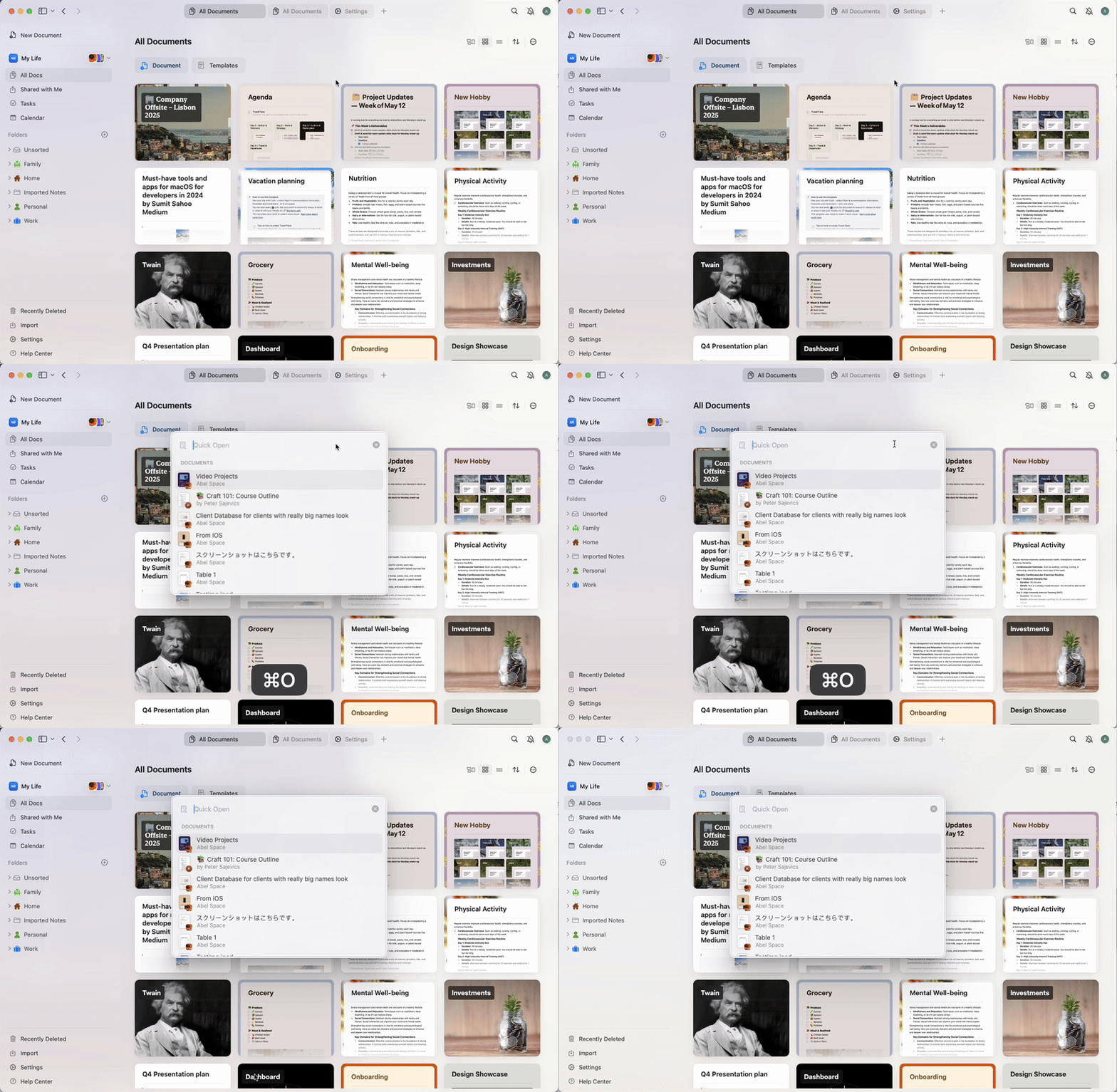 Press `Ctrl + O`, or click the search field at the top of the window
Press `Cmd + O` on a Mac (`Cmd + Shift + O` in Safari) or `Ctrl + O` on Windows, or click the search field at the top of the window
You'll see a floating search bar that lets you begin typing immediately.
## How It Works
Once Quick Open is active:
Start typing the name of a document, folder, space, or view.
Craft lists matching documents, folders, spaces, and views from all your spaces. On macOS and iOS, it also lists matching pages and blocks from the current space.
Use the arrow keys to scroll through the list.
Press **Enter** to open the selected item.
On Windows and Web, a **See more results** button appears at the bottom of the Quick Open panel when you search from the browse screen. Clicking it closes Quick Open and runs a full [Search](/organize-and-find/search) in the current space with what you typed.
## Limitations
Shared documents that you haven't yet opened may appear with limited preview information.
## Troubleshooting
If you're not seeing expected results:
* Make sure your Craft app is up to date
* Try searching for the document's title rather than words from its content
## Related Articles
Find content across the documents in your space
Search within a specific document
This documentation is built and hosted on [Mintlify](https://mintlify.com), a developer documentation platform.
Press `Ctrl + O`, or click the search field at the top of the window
Press `Cmd + O` on a Mac (`Cmd + Shift + O` in Safari) or `Ctrl + O` on Windows, or click the search field at the top of the window
You'll see a floating search bar that lets you begin typing immediately.
## How It Works
Once Quick Open is active:
Start typing the name of a document, folder, space, or view.
Craft lists matching documents, folders, spaces, and views from all your spaces. On macOS and iOS, it also lists matching pages and blocks from the current space.
Use the arrow keys to scroll through the list.
Press **Enter** to open the selected item.
On Windows and Web, a **See more results** button appears at the bottom of the Quick Open panel when you search from the browse screen. Clicking it closes Quick Open and runs a full [Search](/organize-and-find/search) in the current space with what you typed.
## Limitations
Shared documents that you haven't yet opened may appear with limited preview information.
## Troubleshooting
If you're not seeing expected results:
* Make sure your Craft app is up to date
* Try searching for the document's title rather than words from its content
## Related Articles
Find content across the documents in your space
Search within a specific document
This documentation is built and hosted on [Mintlify](https://mintlify.com), a developer documentation platform.