

Widgets are available on iOS, iPadOS, and macOS. What you can use depends on your OS version:
- Home Screen, desktop, and Notification Center widgets: iOS/iPadOS 15 or later, macOS 12 Monterey or later
- Interactive and configurable widgets (completing tasks from the widget, Quick Entry, widget parameters): iOS/iPadOS 17 or later, macOS 14 Sonoma or later
- Lock Screen widgets: iOS/iPadOS 17 or later (the Mac does not support Lock Screen widgets)
- Control Center controls: iOS/iPadOS 18 or later, macOS 26 Tahoe or later
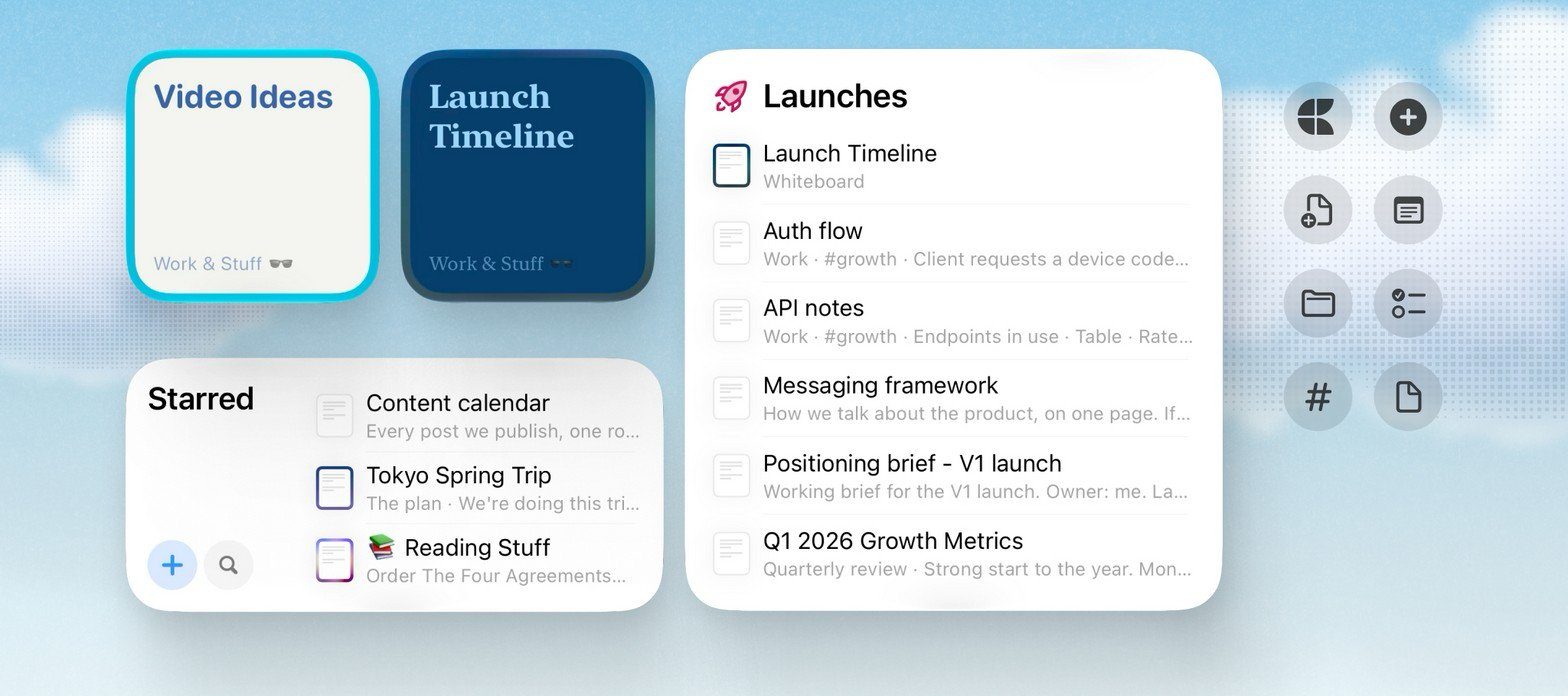
Available widgets
Craft currently offers these widget types:The Document and Daily Note widgets replace the earlier Quick Open widget. The Quick Open name is now used by a new widget that opens a section of the app.
Document
Use the Document widget for one-tap access to a specific document. Choose a Space and the document to open. The widget reflects the document’s styling, including its backdrop, color, and font. You can turn this off in the widget settings if you prefer a plain look.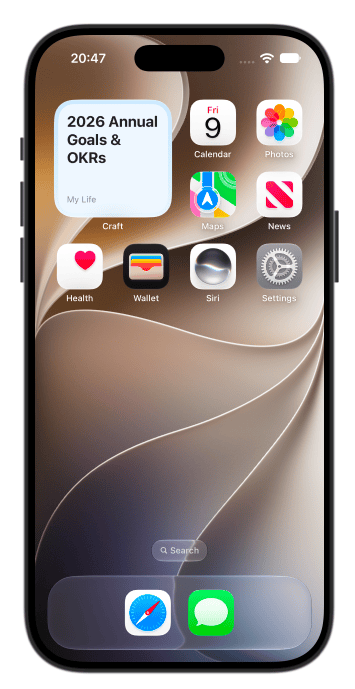
Daily Note
Use the Daily Note widget to keep a daily note one tap away. The widget can point to Yesterday’s, Today’s, or Tomorrow’s daily note, and it keeps pointing to the right note as the date changes.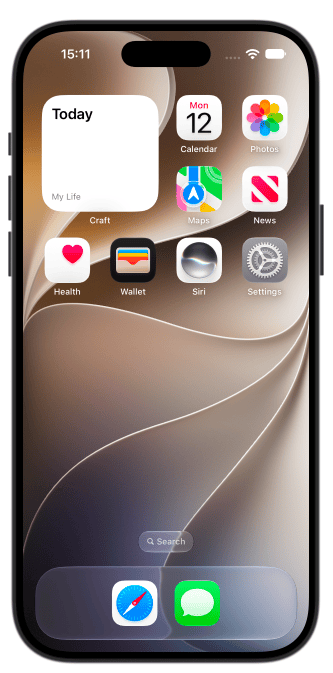
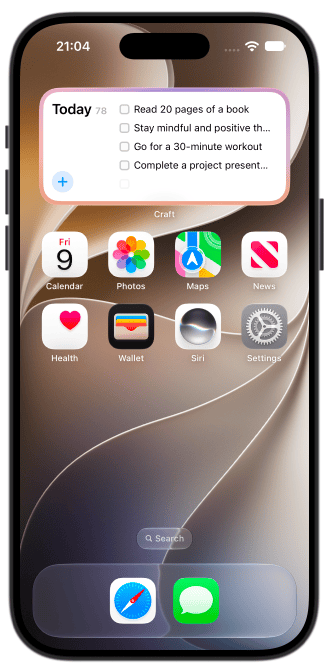
Tasks
Use Tasks to keep task lists visible from your Home Screen or desktop. The widget can show:- Inbox: tasks from your task inbox
- Today: tasks due today plus overdue tasks
- Document: open tasks from a specific document
Recent Documents
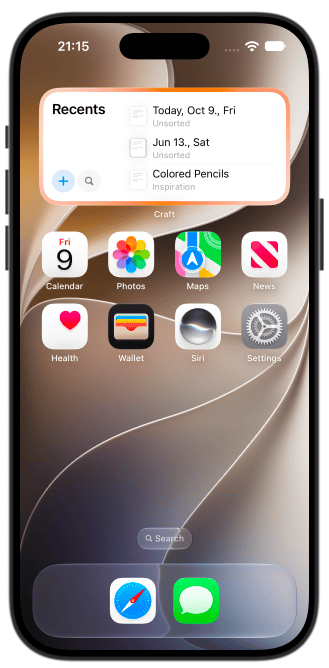
Use Recent Documents to open recently viewed documents from Craft. Choose which Space the widget shows, then tap a document to open it. On medium and larger widgets, Craft also shows quick actions for:- Search: open Craft search
- New document: create a new document in the selected Space
Starred
Use Starred to see the selected Space’s starred documents at a glance and open them with a tap. You can choose the order of the documents in the widget settings. The order does not automatically match the order shown in the app.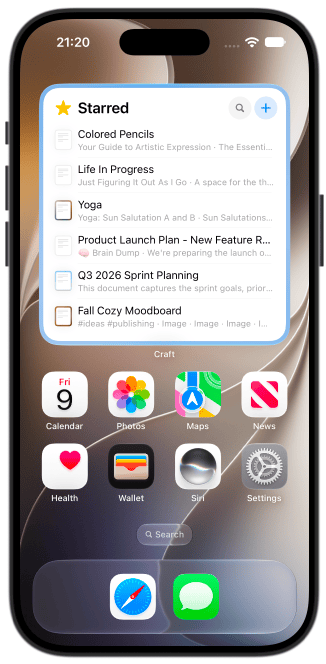
Folder
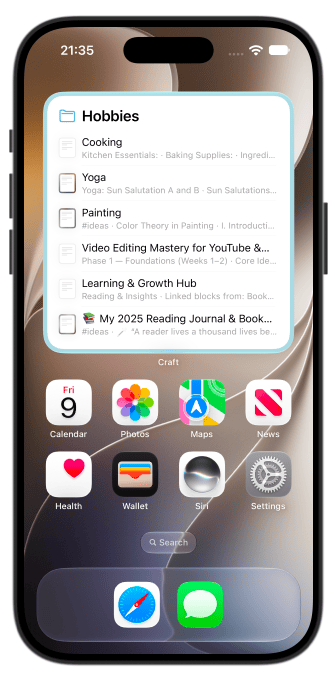
Use Folder to keep a specific folder close by:- The small size shows a quick link that opens the folder.
- Larger sizes show the documents inside the folder, so you can open one directly.
Quick Open
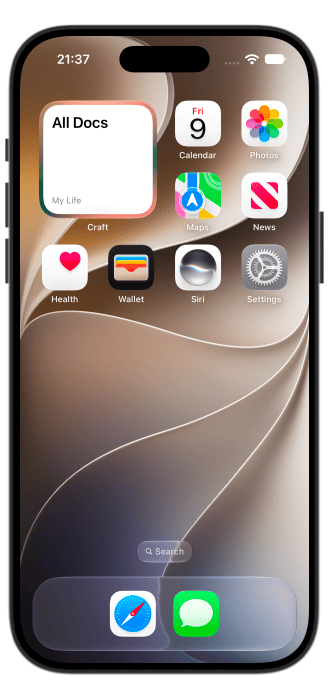
Use Quick Open to jump straight to a section of the app. Choose the destination in the widget settings:- Home
- All Docs
- Tasks, including Inbox, Today, Upcoming, and All
- Calendar
- Tags
- Starred
- Search
Quick Actions
Use Quick Actions to keep four Craft actions on your Home Screen or desktop. You can configure each of the four slots in the widget settings, choosing from:- Open Quick Entry
- Create New Document
- Create Task
- Quick Open
- Open All Docs
- Open Starred
- Open Tasks
- Open Inbox
- Open Today’s Tasks
- Open Upcoming Tasks
- Open All Tasks
- Open Today’s Daily Note
- Open Calendar
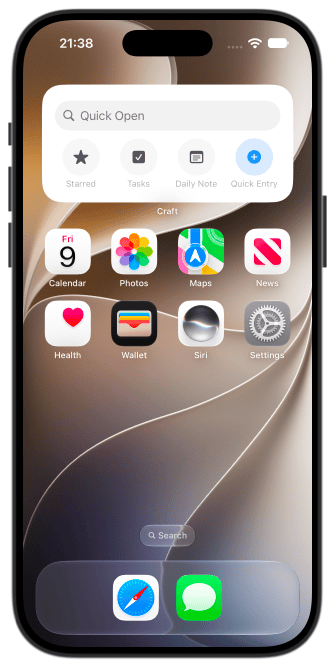
Lock Screen widgets and Control Center controls
The same set of Craft actions is available as Lock Screen widgets and as controls for Control Center on supported iPhone and iPad devices:- Open Craft: opens Craft at a chosen location — Home, All Docs, Tasks, Calendar, Tags, Starred
- Open Tasks List: opens a chosen task list — Inbox, Today, Upcoming, or All
- Create Document: creates a new document in a chosen folder (Unsorted when no folder is set)
- Open Quick Entry: opens Quick Entry in a chosen mode — New Document, New Task, Add to Daily Note, or Append to Document
- Open Document: opens a chosen document, including existing daily notes
- Open Folder: opens a chosen folder
- Open Tag: opens a chosen tag (typed as free text, with or without #)
- Open Daily Note: opens yesterday’s, today’s, or tomorrow’s daily note
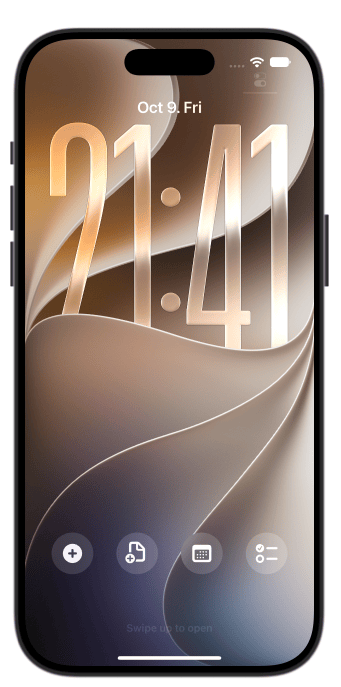
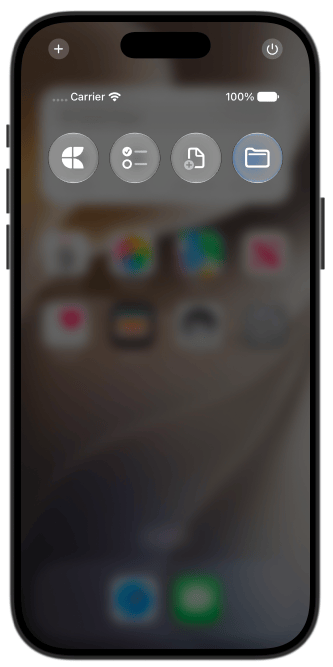
Add a widget
Widgets are added through your device’s widget gallery. The exact steps depend on the platform:- iPhone
- iPad
- Mac
- Lock Screen
- Control Center
- Touch and hold an empty area on the Home Screen until the apps jiggle.
- Tap the + button.
- Search for Craft.
- Choose the widget you want to add.
- Select a size.
- Tap Add Widget.
- Touch and hold the widget, then tap Edit Widget to configure it.
Configure a widget
After adding a Craft widget, edit it from the system widget menu to choose what it displays. Common configuration options include:- Space: choose which Craft Space the widget should use
- Document, folder, or display mode: choose a document, daily note, folder, task list, app section, or quick actions depending on the widget
- Order: choose how documents are ordered in the Starred and Folder widgets
- Appearance: turn the document’s styling (Document widget) or the folder’s color (Folder widget) on or off, and set a widget background where available
Open Craft on the same device and make sure you are signed in. Widget options are populated from the Spaces, documents, and account data available to the app.
How often widgets update
Craft asks the system to refresh Recent Documents and Tasks widgets about every 15 minutes. Tasks widgets also refresh when you switch in or out of Craft and when Craft receives task-related updates. Apple controls the exact widget refresh timing, so updates may not appear instantly. If a widget looks stale, open Craft once, then return to the Home Screen or desktop.Tips
- Add more than one Craft widget if you want separate views for different Spaces, documents, folders, or task lists.
- Use the Daily Note widget with Today to keep your Daily Note one tap away.
- Use Tasks in Document mode for project-specific task lists.
- Use the Starred or Folder widget to keep a curated set of documents on your Home Screen.
- Use medium or large Recent Documents widgets if you want built-in Search and New document actions.
- If a widget does not load after updating Craft, remove it and add it again from the widget gallery.
Apple Shortcuts
Automate tasks with Shortcuts integration
Daily Notes
Use widgets with Daily Notes for quick access