

Adding Comments
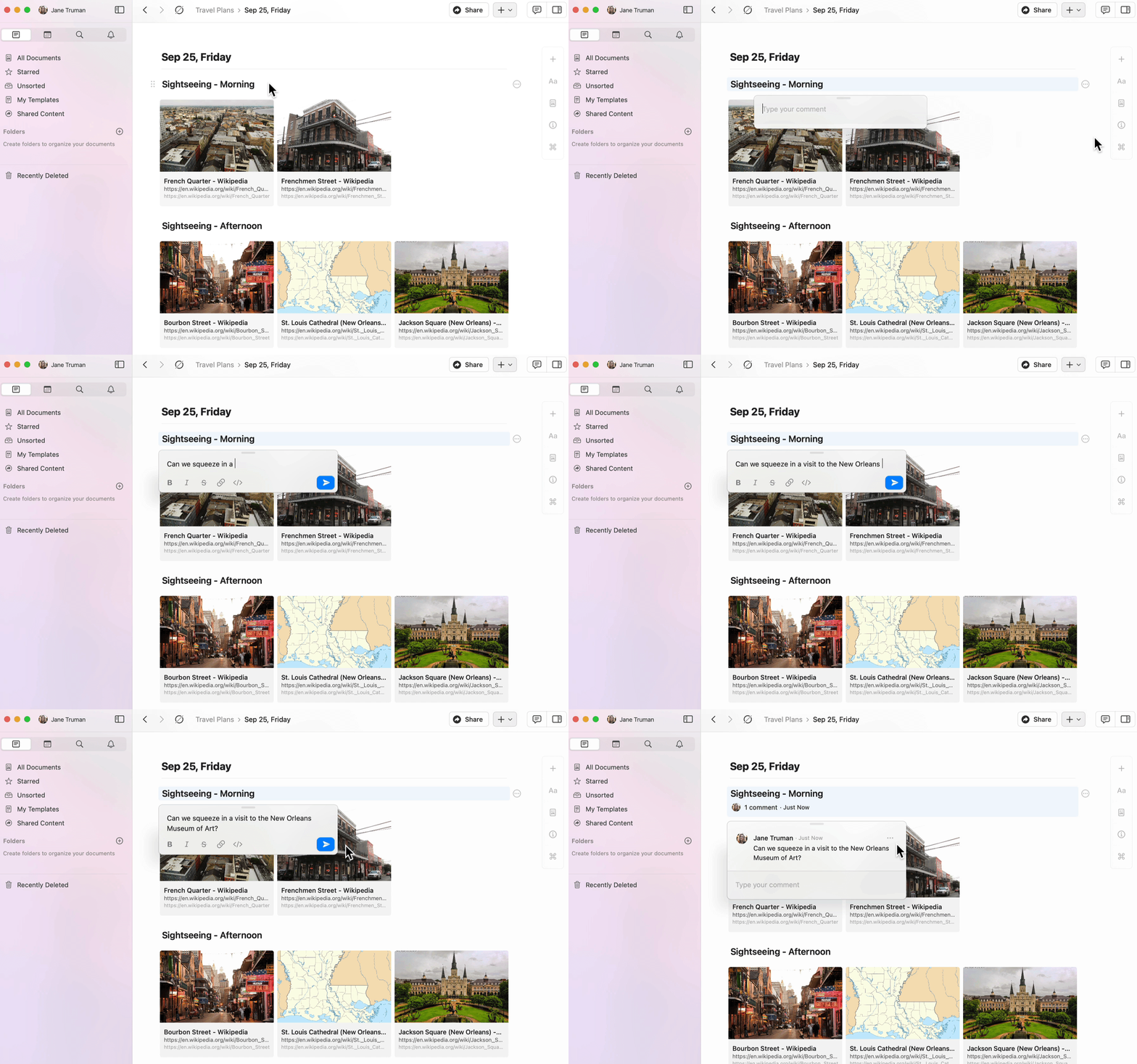
You can add comments to any block in a shared document.1
Select a block of content.
2
Click the three-dot menu (⋯) in the block menu.
3
Select Add comment.
Formatting Comments
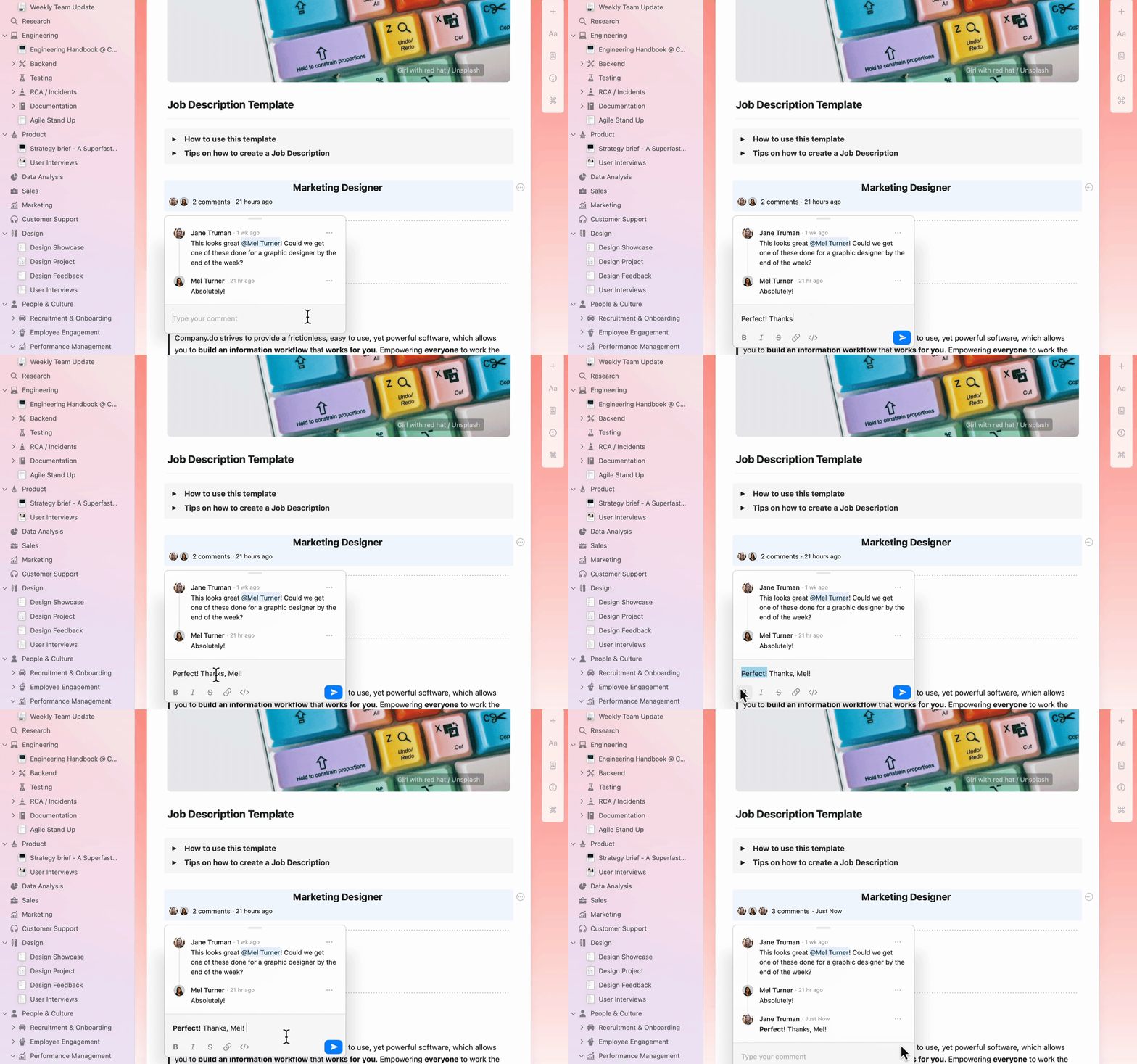
Comments support basic text formatting to help you communicate more effectively:- Bold, italic, and
strikethrough - Links
- Inline code
Viewing Notifications
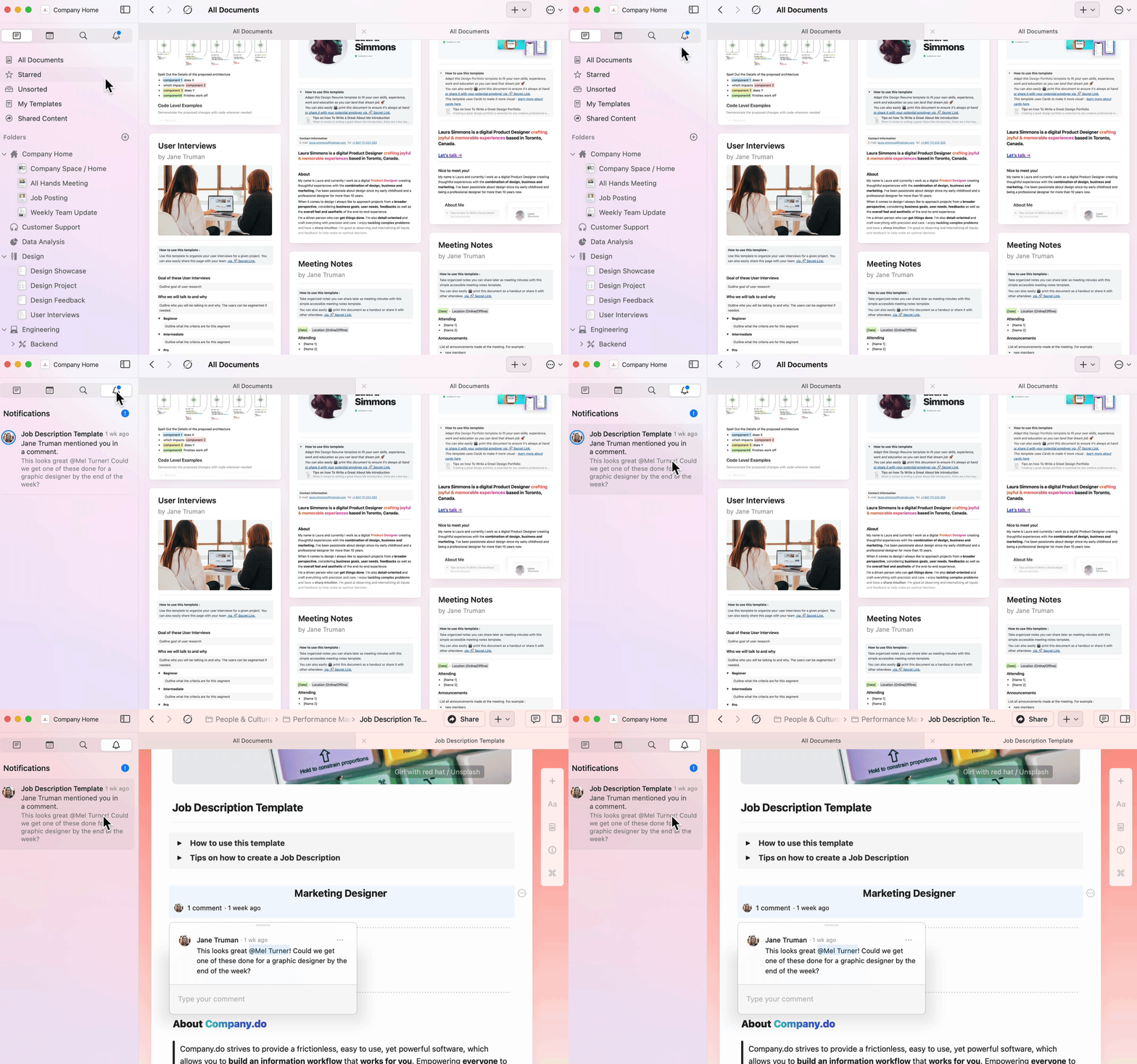
The notifications panel gives you a quick overview of all activity on your shared documents.1
Navigate to the notification bell icon in the sidebar.
2
View all unread notifications across your spaces.
3
Click into any notification to jump directly to the relevant document and comment.
You’ll receive notifications when:
- Someone comments on a block you created
- Someone mentions you in a comment or document
Replying to Comments
Navigate directly to comments from the notifications panel and reply in-line.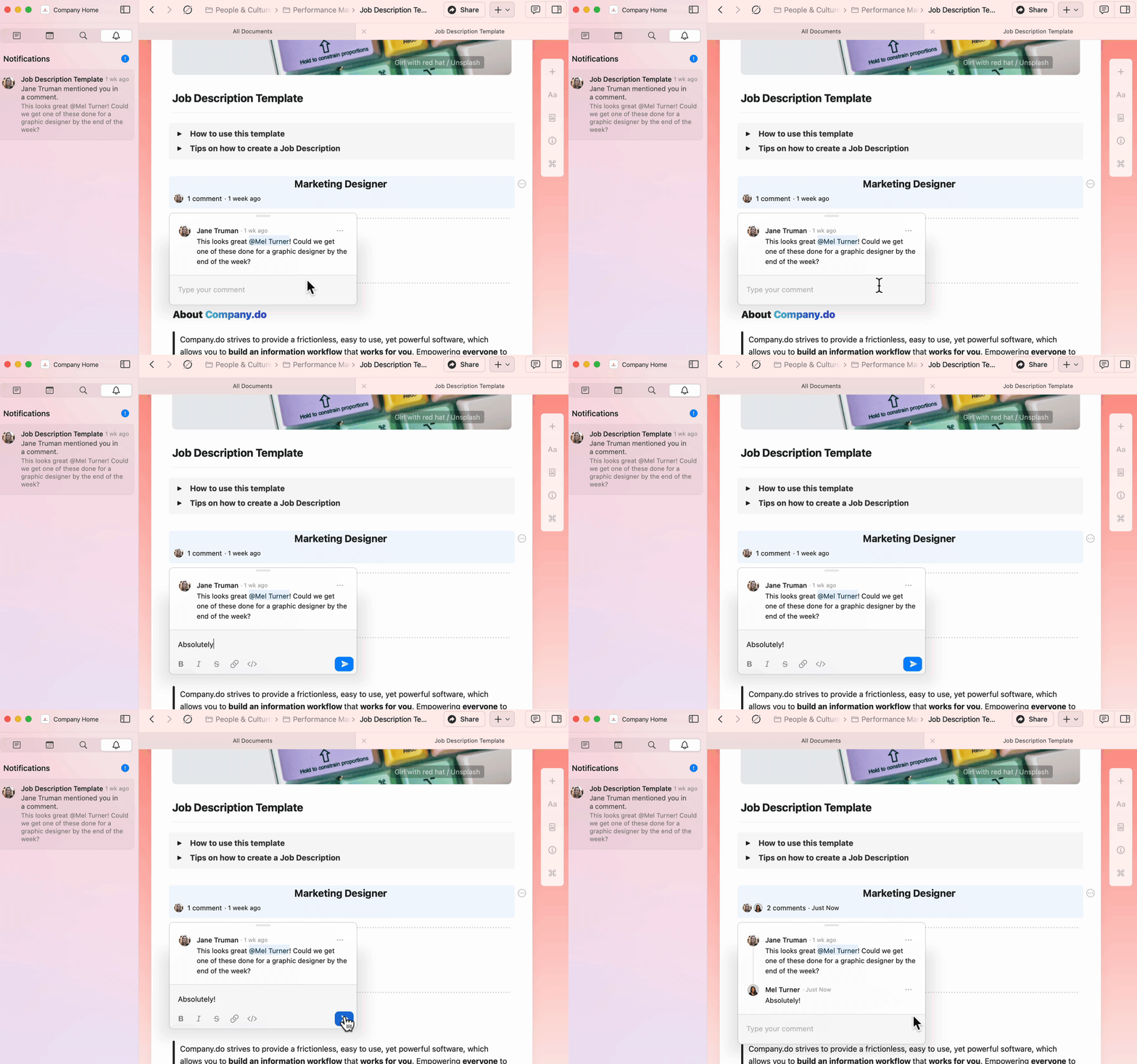
Email Notifications
Open Settings > Notifications. Under Comments & Mentions, turn Email Notifications on or off to change the default for your spaces. To change a single space, select it under Spaces and change Email Notifications there.Per-space settings override the default. These settings control emails from spaces you belong to. Comment and mention emails from documents shared with you in other spaces may still arrive. Contact support@craft.do if you need help stopping them.
Push Notifications
Push notifications provide real-time alerts for:- Comments on blocks you created
- Mentions in documents or comment threads
- macOS
- iOS
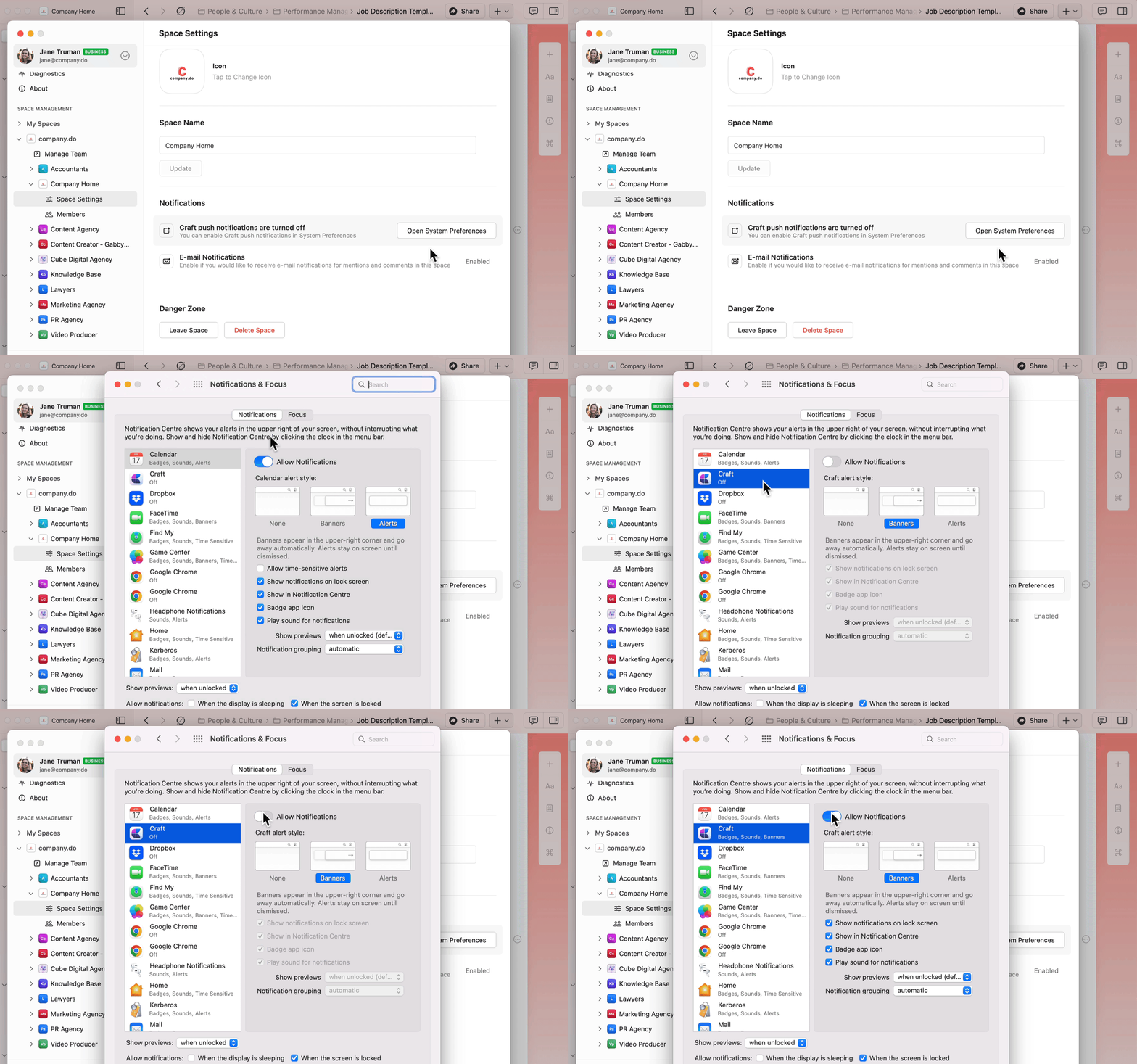
1
Go to Preferences in Craft.
2
Under Space Management, select your space.
3
Go to Space Settings.
4
Click Open System Preferences.
5
Navigate to Craft in System Settings.
6
Turn on Allow Notifications.
Related Articles
Sharing Documents
Learn how to share and collaborate on documents
Team Collaboration
Work together with team spaces and permissions